A playable game can turn a static page into something visitors stay on. Teachers use them on class sites, bloggers add them to articles, and community sites use them as a friendly extra. You do not need to host anything or write any game code: OnlineGameWorlds lets you embed our own Unity games on your site free of charge, with no sign-up. The game runs from our servers inside a frame on your page. This guide explains which games can be embedded, how to get the code, how to size it for your layout, and which games make a good first embed.
Our picks to play for free
 #1Clock Timing ChallengeWatch the rotating clock hand, tap at the exact moment to launch it toward another clock, and connect without missing.
 #2Word Search RelaxLook at the list of hidden words, search for them in the letter grid, and swipe letters to form words.
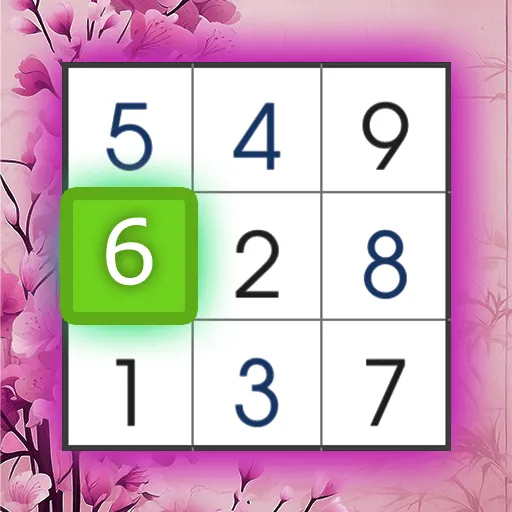 #3Easy Sudoku PuzzleFill the grid with numbers from 1 to 9 so that each number appears only once in every row, column, and box.
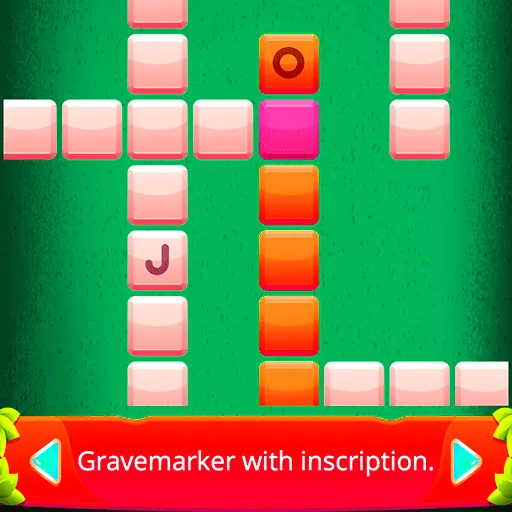 #4Daily Crossword PuzzleTake your time and piece together each answer from the clues.
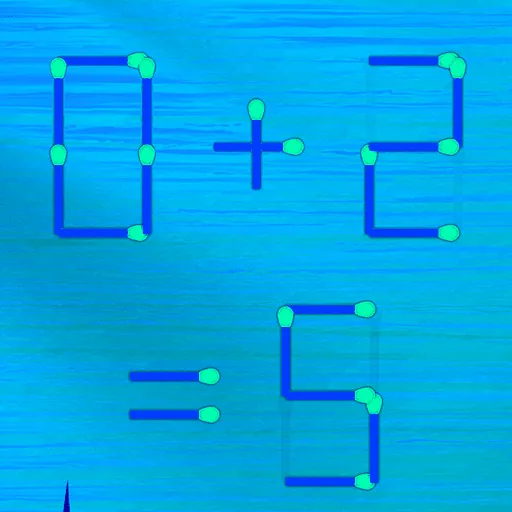 #5Math Sticks PuzzleFix mathematical equations by moving one or two matchsticks.
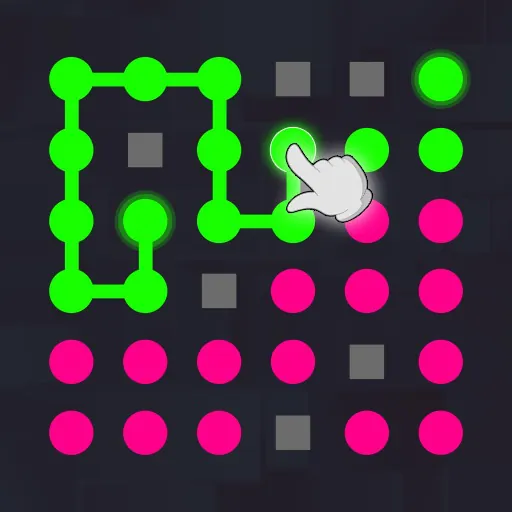 #6Connect The DotsTap a colored dot and draw a line to the same-color dot.
 #7Water Sort PuzzleTap a bottle to pour water into another.
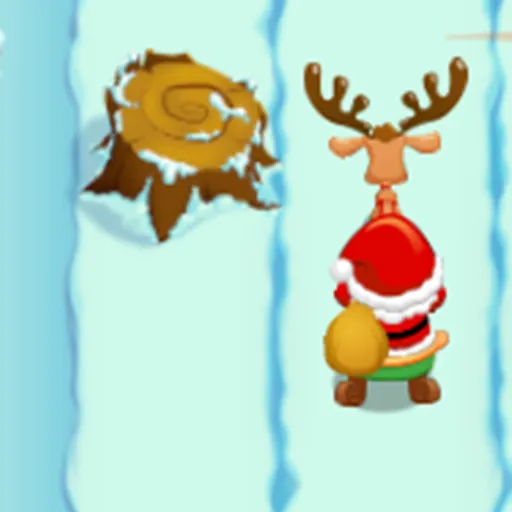 #8Santa Gift RunnerSanta rides forward automatically.
 #9Fishing MasterCast your hook into the water and time your reel to catch fish as they swim past, bigger, rarer fish are worth more points but need sharper timing.
What embedding means
Embedding places a playable game inside an iframe, a frame that shows one web page inside another. We host the game files and serve them; you only paste a short snippet into your page. There are no files to download, no server costs and nothing to maintain, and your visitors play without leaving your site. Full details live on our Embed Our Games page, and this guide walks through the practical side.
Which games can you embed?
Embedding is available for our own Unity WebGL games. Each one that supports it has an "Embed this game" section on its game page. If a game page does not show that section, it cannot be embedded. Good starting points include Clock Timing Challenge, a one-tap timing game, Word Search Relax, a word search with no time limits, and Easy Sudoku Puzzle, which offers hints and undo for beginners.
How to embed a game in three steps
- Open the game you want on OnlineGameWorlds and scroll down to its "Embed this game" section.
- Press the copy button. The full embed code, ready to paste, goes to your clipboard.
- Paste the code into your page's HTML, then adjust the width and height if you want a different size.
The code you copy contains two parts. The first is the iframe itself, which points at the game's embed address, sets a starting width and height, removes the border, stops the frame growing wider than its container, and allows autoplay, fullscreen and gamepad input. The second is a short credit line under the game, linking to the full game page and to OnlineGameWorlds. Please keep that credit line: it is what keeps embedding free, and it gives players who enjoy the game somewhere to find more.
Portrait or landscape?
The copied code already matches the game's shape: landscape games start at 960 by 600 pixels and portrait games at 480 by 800. You can change both numbers to anything you like, because the game fills whatever space the frame gives it.
Choosing a size
Pick a size that fits your column without forcing readers to scroll sideways. As rough starting points, landscape games work well at 800 by 450 pixels in a standard blog layout, or 1024 by 576 for a large desktop embed. Portrait games look right at 360 by 640 for a mobile-style layout, or 450 by 800 if you want a tall frame on desktop. Because the embed code limits the frame to the width of its container, it will narrow on small screens; the height stays as you set it, so on a mobile-heavy site a slightly shorter height can look tidier. If you know some CSS, wrapping the frame in a container with a fixed aspect ratio keeps the shape consistent at every width.
Adding the code on popular platforms
- Plain HTML: paste the snippet where you want the game to appear.
- WordPress: add a Custom HTML block in the block editor and paste the code into it.
- Wix: add an HTML embed element (Embed, then HTML iframe) and paste the code.
- Webflow: add an Embed element and paste the code.
- Squarespace: add a Code block and paste the code.
- School sites and learning platforms: the same iframe works in Google Sites, Canvas, Moodle and other systems that accept embedded HTML.
Good games to embed by audience
For a teaching site, puzzle and word games fit naturally. Daily Crossword Puzzle has themed puzzles with hints, Math Sticks Puzzle asks players to fix equations by moving one or two matchsticks across addition, subtraction, multiplication and division, and Connect The Dots is a simple logic puzzle where you join same-coloured dots without crossing lines. For a general blog, quick arcade games suit short visits: Santa Gift Runner is a festive lane-switching runner, and Fishing Master is a relaxed fishing game with boats and upgrades. For a calmer page, Water Sort Puzzle is a colour-sorting puzzle with undo for fixing mistakes.
Tips for a good embed
- Give the game some context. A sentence above the frame explaining how to play helps visitors start straight away.
- Match the game to the page. A word game under an article about spelling earns more plays than a random arcade game.
- Leave the title attribute in place. It describes the frame to screen readers, which helps accessibility.
- Embed one game per page. Several heavy games on one page make it slower for everyone.
- Test on a phone. Check that the frame fits your layout and that the game responds to touch.
Is it really free?
Yes. Embedding is free and needs no account. You may embed on a commercial site as long as you follow our Terms of Service, and you can resize the frame as you wish. The only request is that you keep the credit line that comes with the code. If you want to know how these games run in a browser at all, our Unity WebGL games guide explains the technology, and if you make games yourself, our how to publish an HTML5 game guide covers getting your own game onto the site.
Frequently asked questions
How do I add a free game to my website?
Open one of our Unity games on OnlineGameWorlds, scroll to its "Embed this game" section, copy the code and paste it into your page's HTML. The game runs from our servers inside an iframe.
Do I need an account to embed games?
No. Embedding is free and needs no sign-up. Please keep the short credit line that comes with the embed code.
Can I change the size of an embedded game?
Yes. Change the width and height values on the iframe to any size. The game fills the space you give it, and the code stops it growing wider than its container.
Which games can be embedded?
Our own Unity WebGL games. Any game whose page shows an "Embed this game" section can be embedded; games without that section cannot.